

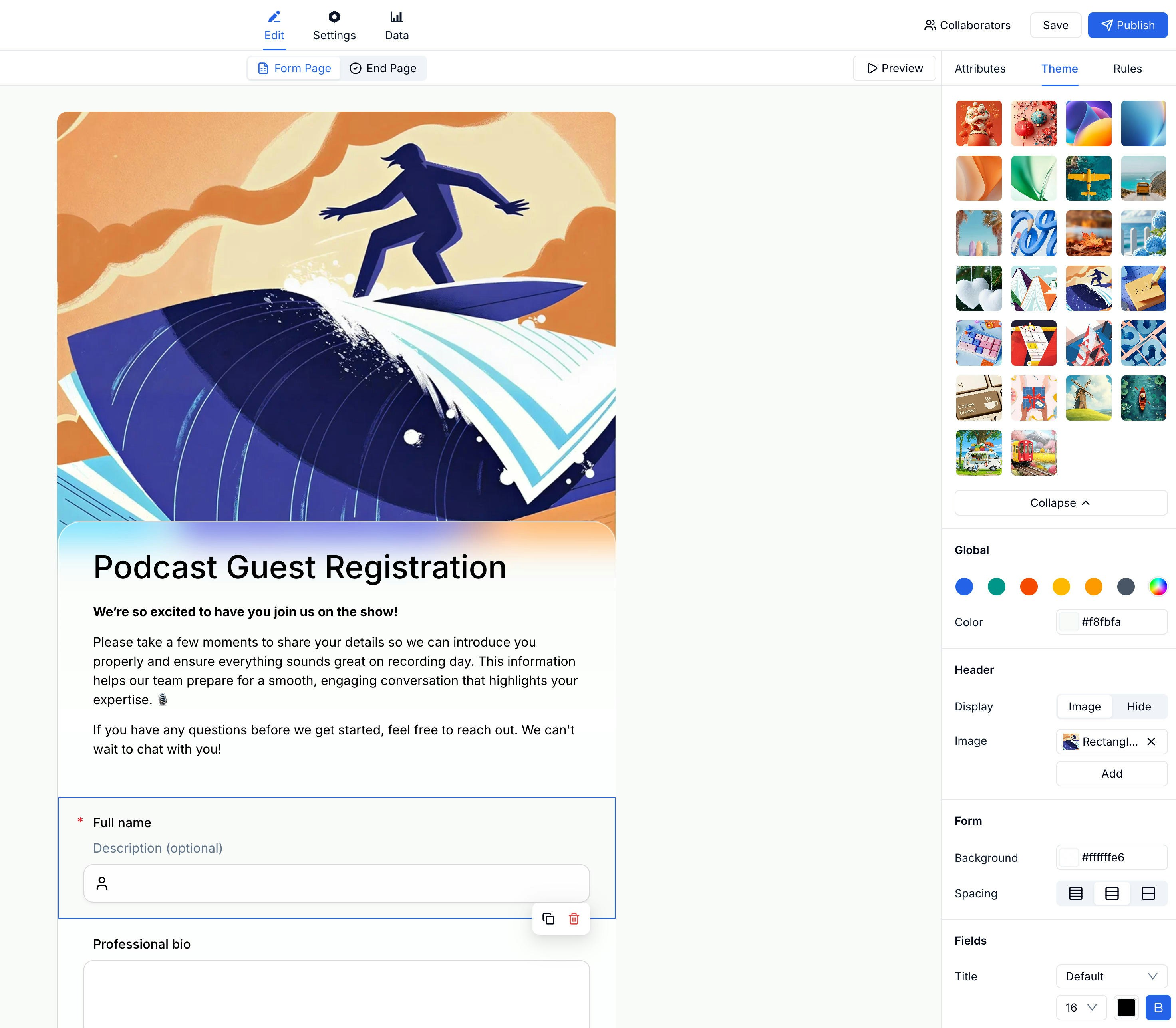
Applying a Preset Theme
Global Colors
Below the preset grid, the Global section lets you set a color palette for the entire form. Changes here affect all elements at once.Header Settings
Control how the form header looks:| Option | Description |
|---|---|
| Display | Show the header with title and description |
| Image | Use an image as the header background |
| Hide | Remove the header entirely |
Form Background & Spacing
Adjust the form container:| Setting | Description |
|---|---|
| Background | Form background color |
| Spacing | Padding inside the form container |
Fields Appearance
Style individual fields:| Setting | Description |
|---|---|
| Title | Field label color and style |
| Font size | Text size for field content |
Related
Custom Branding
Add your workspace logo and brand identity
Form Builder
Edit form structure and content
Lead Generation Templates
Apply themes to campaign forms, waitlists, demo requests, and quote forms
Template Library
Start from a template, then adjust visual style