

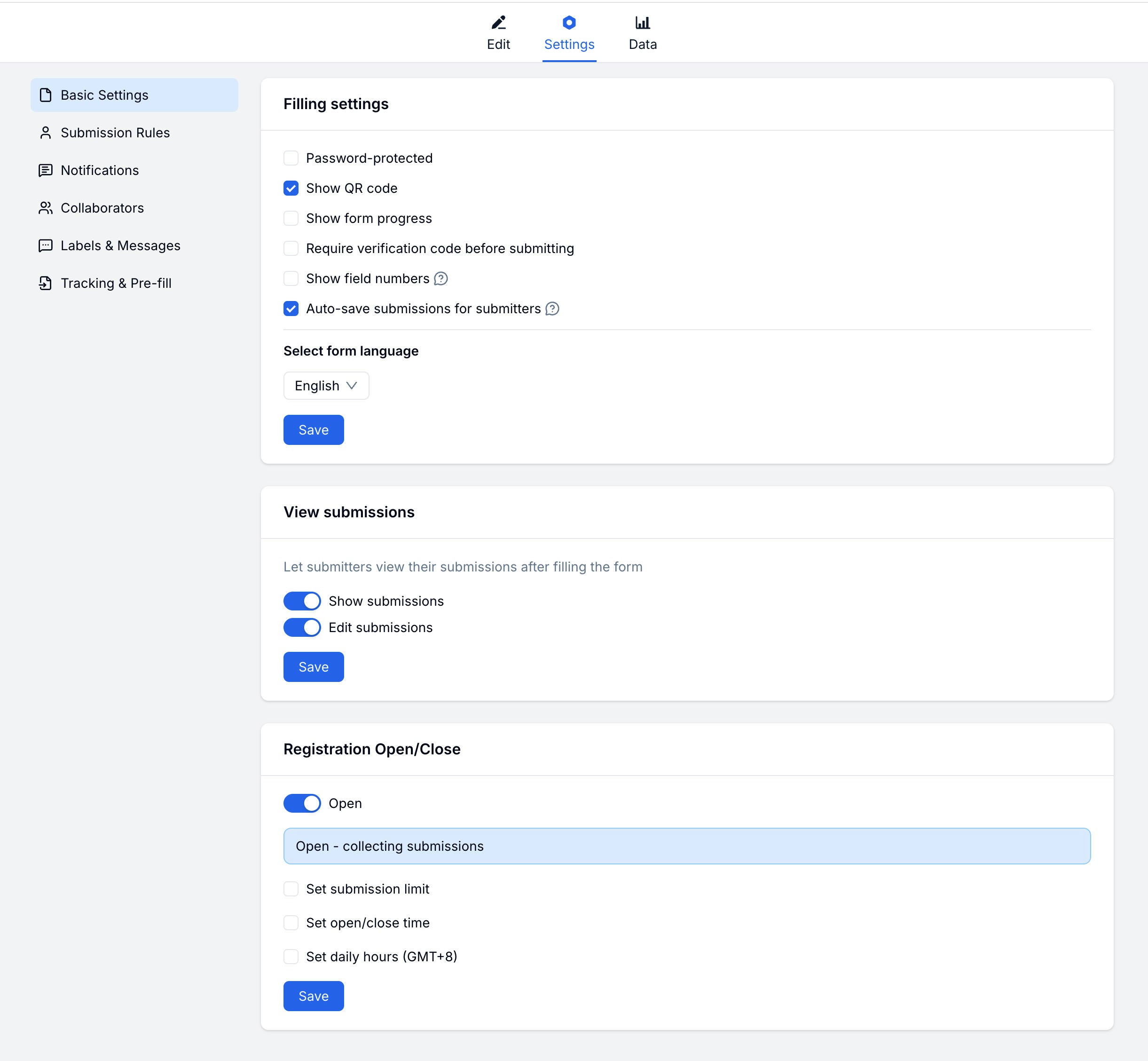
Filling Experience
Shape how submitters interact with your form:| Setting | Description |
|---|---|
| Password Protection | Require a password to access the form |
| Progress Bar | Show completion progress at the top |
| Auto-save | Automatically save progress so submitters can return later |
| Show QR Code on Form | Display a QR code on the form page |
| Show Field Numbers | Number each field for easier reference |
| Language | Set the form display language |
Password Protection
Restrict access to your form with a password.Auto-save
Let submitters save progress and continue later. Progress is saved as they fill the form — they can close the browser and return without losing their answers.Submission Access & Editing
Decide what submitters can do after submitting:| Setting | Description |
|---|---|
| View Submissions | Let submitters see their past responses |
| Edit Submissions | Allow submitters to edit a response after submitting |
Open & Close Rules
Control when your form accepts submissions:| Setting | Description |
|---|---|
| Submission Limit | Maximum total submissions before the form closes |
| Schedule | Set open and close dates |
| Countdown | Show time remaining until the form closes |
Setting a Schedule
Submission Limit
Cap the total number of accepted submissions:- Enable Submission Limit
- Enter the maximum number
- Optionally customize the message shown when the form is closed
Related
Submission Rules
Control who can submit and how often
Notifications
Set up email alerts for new submissions
Registration Form Guide
Configure access, limits, and close rules for sign-up forms
Registration Templates
Start from event, course, webinar, and membership registration templates